

For more updates and latest tools, subscribe to our Telegram channel.
Join Telegram ChannelTMT ADB TOOL V1.0 2026 Free Download
If you have repaired Vivo phones, you already know what I’m talking about. The phone works fine, network is fine, but this strange notification keeps popping up. Sometimes even after flashing new software, it still stays there like it doesn’t care what you do.

A few days ago, I saw a video by a channel called TEKNISI MUSAFIR. The guy shared a small free tool just to fix this one problem. No big drama, no paid stuff, just a simple tool made to remove that annoying notification.
What I liked most is that it is not one of those heavy tools that need ten other programs to run. It uses ADB, connects to the phone, sends a few commands, and that’s it. Simple.
The tool is tested mainly on Vivo Y30 and Y30i. But the funny thing is, many people also face this problem on Vivo Y12 and Y91, so chances are it may help there too. I won’t say 100% for all models, but for these ones, people are getting results.
Apart from fixing the Vivo notification, the tool also has some extra options. For example, you can disable OTA updates on Samsung phones, which is actually useful if you don’t want the phone to update itself and mess up your work. There are also reboot buttons. You can reboot the phone to system, recovery, fastboot, even download mode for Samsung and EDL for Oppo. All in one small tool.
Now about using it. It is not hard, but you can’t be careless either.
First, USB debugging must be on. Without that, nothing will work. Go to settings, about phone, tap build number like everyone does, turn on developer options, then USB debugging. You already know this part if you work with phones.
Then comes the important part many people mess up. When you connect the phone to PC, don’t leave it on “charge only”. Select “transfer files” or MTP. If you don’t do that, the tool won’t see the phone, and you’ll think the tool is broken when it’s not.
If the phone asks for permission for USB debugging, allow it. Tick the “always allow” box too. If something still doesn’t work, unplug the cable and plug again. That usually fixes half the problems in phone repair anyway.
Once the phone is detected, you just click “Fix Notification Vivo”. Wait a bit. Don’t rush. Let it finish. But remember, the job is not complete until the phone restarts. You must reboot the phone, either using the tool or manually. After that, the notification should be gone.
In real life, this is actually very useful. A customer comes with Vivo Y30, phone is fine but this stupid notification keeps showing. You connect the phone, run the tool, reboot, and done. Customer happy, you save time, no flashing needed.
Is it magic? No.
Is it useful? Definitely.
And the best part is, it’s free. No login, no activation, no drama.
One thing I’ll say though, don’t expect it to fix hardware issues. This is for software-related notification problems only. Also, always be careful with tools. Even simple ones can mess things up if used blindly.
For me, this is one of those small tools you keep in your folder and forget about… until one day it saves you 30 minutes of headache.
That’s all. Simple tool. Simple purpose. Works when needed.
Key Features of the Tool
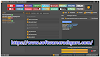
- Fix Notification Vivo: The primary function is to bypass/remove the "Phone Exception" notification.
- Disable OTA Samsung: A bonus feature to disable automatic Over-The-Air system updates on Samsung devices (tested on various models).
- ADB Reboot Options: The tool provides one-click buttons to reboot devices into different modes without using physical buttons:
- Reboot System
- Reboot to EDL (Emergency Download Mode) - typically for Oppo devices.
- Reboot to Fastboot
- Reboot to Recovery
- Reboot to Download Mode (specifically for Samsung).
How to Use the Tool (Step-by-Step)
The method relies on ADB, so proper phone setup is critical for the tool to function.
Step 1: Enable Developer Options & USB Debugging
- Go to your phone's Settings.
- Navigate to About Phone and tap the Build Number 7 times to enable Developer Options.
- Go back to System/Additional Settings, find Developer Options, and enable USB Debugging.
Step 2: Connect the Phone
- Connect the phone to the PC using a USB cable.
- Crucial Step: On the phone screen, a prompt will appear asking for USB mode. You MUST select "Transfer Files" (or MTP). Selecting "Charge Only" will prevent the tool from working.
- If a prompt appears asking to "Allow USB Debugging" or unauthorized fingerprint, check the "Always allow" box and click OK/Allow.
- Tip: If the tool shows an error, unplug the USB, plug it back in, and ensure "Transfer Files" is selected again.
Step 3: Run the Fix
- Open the tool on your PC.
- Once the device is detected, click the "Fix Notification Vivo" button.
- Wait for the log to indicate the process is complete/done.
Step 4: The Mandatory Reboot
- Important: The fix is not complete until the phone restarts.
- After the fix command finishes, you must click the "Reboot" button in the tool or manually restart the phone.
- Once the phone turns back on, the notification issue should be resolved.

![Unlock Tool 2026.05.04.0 Released [Latest Version]](https://blogger.googleusercontent.com/img/a/AVvXsEiybNFqJPBiI-QDL-WNuv813C6nPcquxVmcGGdQrgUv20B8dkwoo8xzvjoDx3Iv3QjgNgvSxjhyVLWCeQxGFBCNXj35bTauYLrM1VyFcTT6JT8Sn3kw2SWDw-Auz_Fo7D7xtEHvMKMwLqsvZ_R20A23yefK3aahcgywEkYU_W3aiBJGh3RFBTbjVWTpEF4-=w100)



0 Comments
Do Not Send SPAM Link !!!!